
Meta Pixel quiz integration: retarget quiz takers, build better lookalikes
Connect a RevenueHunt quiz to Meta (Facebook) Pixel: setup by platform, the full tracked-events table, custom audiences, and reviewing custom events.
Meta Pixel (the tool formerly called Facebook Pixel) is the tracking layer that makes Facebook and Instagram ads accountable: it tells you who visited, what they did, and which actions correlate with a sale. A product recommendation quiz fires a much richer set of events than a plain catalogue page does. Wired together, the two unlock the two ad audiences that consistently outperform cold prospecting: retargeting quiz takers who didn’t buy and lookalike audiences built from people who completed the quiz.
This guide covers how to connect a RevenueHunt quiz to Meta Pixel on every platform version, the real list of events the integration fires (the docs version, not the marketing version), the required “Review Custom Events” step most setups forget, and the two ad audiences that pay back the setup cost.
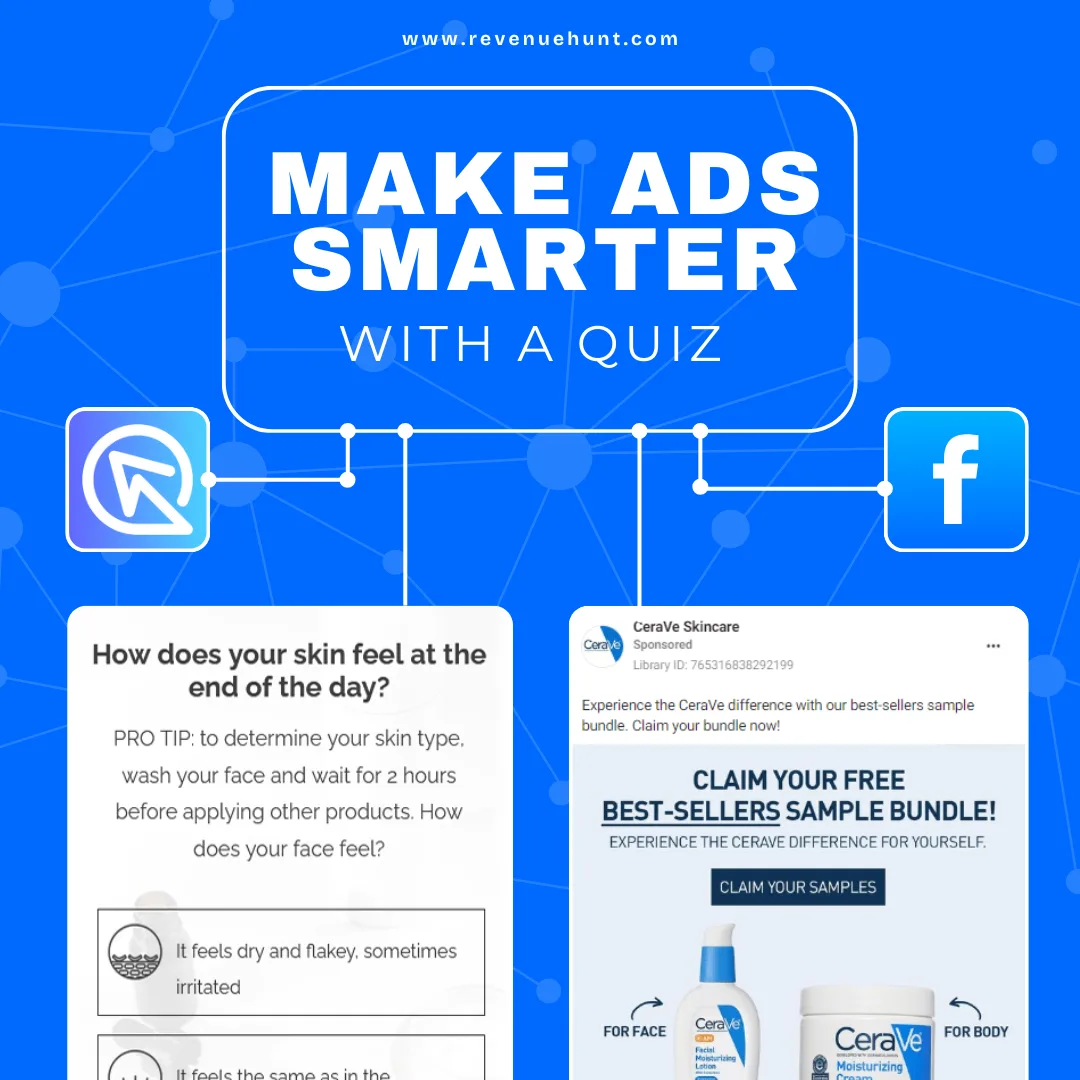
Fig. 01 The Meta Pixel quiz integration: every quiz step fires a Pixel event so the Lead and Add-to-Cart events Meta's algorithm optimises against include the quiz funnel's actual signal, not just the storefront's last touch.
What you'll learn
- →How to connect Meta Pixel on Built for Shopify (multi-step), Shopify Legacy, and the simpler WooCommerce / Magento / BigCommerce / Standalone flow.
- →The 10 events the integration fires automatically, with the exact
fbqaction, event name, and parameter payload. - →The Review Custom Events step that most setups forget, and why your
RetakeQuiz/EmailLeadaudiences sit empty without it. - →The two ad audiences that actually convert (retargeting quiz takers, lookalikes of quiz completers) and how to build them.
- →When to use the custom
prqQuizCallbackfunction instead of the built-in integration.
Why a quiz pairs with Meta Pixel
The standard Shopify Pixel setup fires PageView and AddToCart for everyone who lands on the store. Useful, but the shopper is anonymous: you don’t know whether they’re a serious match for your products or a bounce who clicked the wrong ad. A quiz changes that. By the time someone has answered three questions and reached the results page, you know their skin type, their concern, their budget band, and what you recommended. The Pixel attaches all of that to the customer record. You can now retarget by specific concern, not “people who saw a product page.”
For a worked example of this in production (a US anti-ageing device brand sending cold Meta ad traffic directly into a quiz instead of a collection page), see the anti-ageing device case study (9.8% quiz-to-purchase CVR on cold Meta traffic, +42.64% AOV lift, $691,128 in 90 days). The strategic argument behind the architecture is quiz funnels vs collection pages; the popup-vs-quiz lead-capture pillar is why popups are walls and quizzes are doors.
Why quiz-driven ad audiences convert
5.5%
of shoppers who finish a quiz place an order, about 1 in 18, 2.75x a typical 2% store (RevenueHunt benchmark, 45M+ responses)
71%
of top-converting quizzes collect email (75% make it required), which is the seed list for Meta lookalike audiences
1 in 5
quiz-attributed orders land more than 30 days later, so the retargeting layer keeps converting for months after the visit
Setup paths by platform
The setup is multi-step on Shopify (because the Pixel itself lives in Shopify’s Customer Events, not in the RevenueHunt app), and single-step on the multi-platform versions (paste the Pixel ID and you’re done).
Built for Shopify
-
Connect the Pixel to Shopify. In Shopify admin, Settings > Customer events. If Meta Pixel isn’t already integrated, install the Facebook and Instagram Meta app.
-
Configure the Facebook and Instagram app. Open it in Shopify, go to Settings, set Shared data to Maximum so custom events come through. Choose or create a data set for tracking.
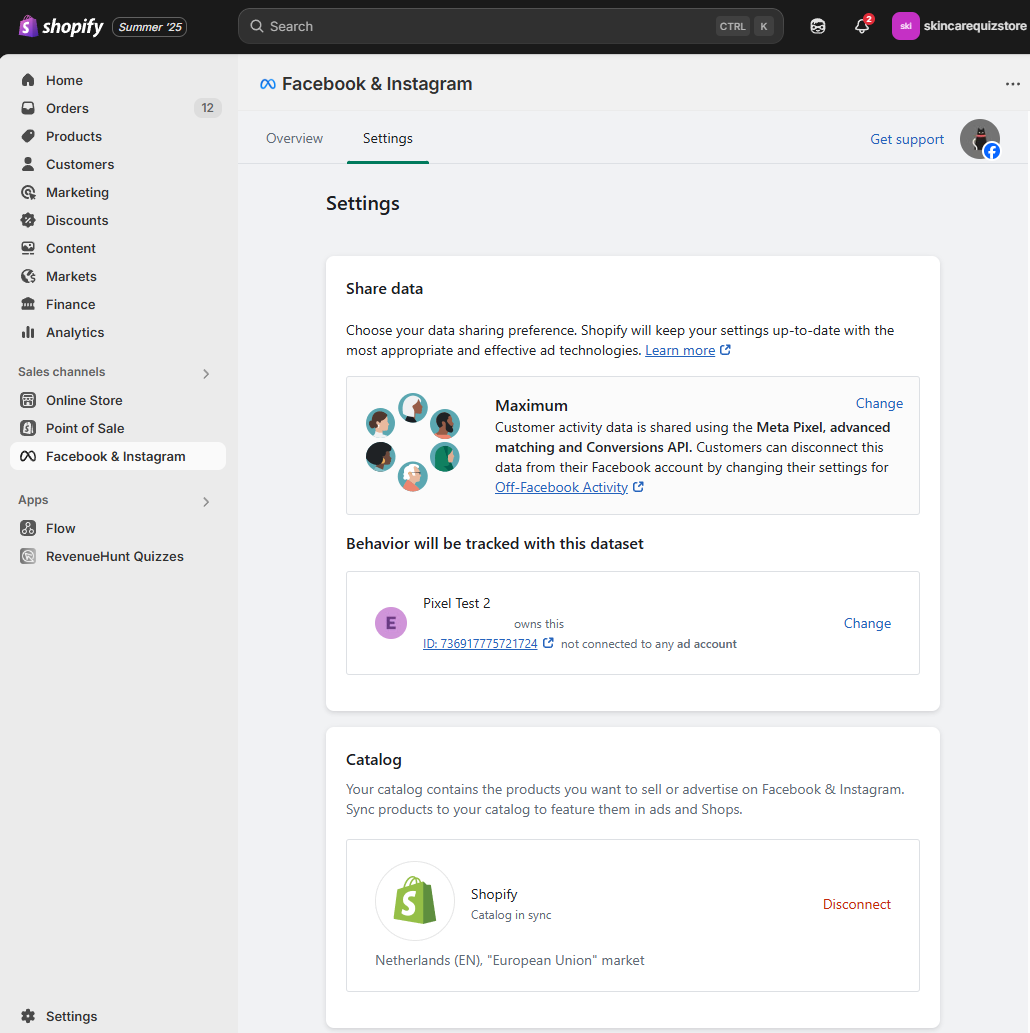
Fig. 02 Facebook and Instagram app settings in Shopify with Shared data set to Maximum. Required for custom events from the quiz to reach Meta; the default Standard level strips the `content_category` and `content_name` tags the quiz fires.
-
Publish the quiz on a dedicated page. Pixel tracking is most reliable when the quiz lives on its own landing page rather than embedded as a widget on the homepage. See publish quiz inline for the embed.
-
Activate the integration in the quiz. Open Quiz Settings > Integrations, find the Meta Pixel section and click Activate. Save. The quiz now binds to whichever Pixel is already firing on your store.
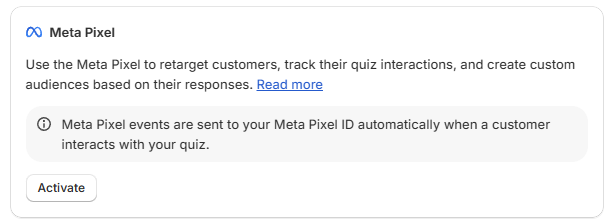
Fig. 03 The Meta Pixel section inside Quiz Settings, Integrations. Activate the toggle to bind the quiz to whichever Pixel is already firing on the store; the integration then fires PageView, ViewContent, Lead and AddToCart per slide automatically.
- Test. In Shopify admin > Facebook and Instagram app > Settings > open your data set in Meta Events Manager > Test events. Enter your quiz page URL, take the quiz, and confirm events appear (
ViewContent,Lead, custom events). - Review Custom Events. The custom events (
RetakeQuiz,EmailLead) are not usable in ads or audiences until you review them. See the section below.
Shopify Legacy
Same Shopify-side prep (Customer events + Facebook & Instagram app + data set), then in RevenueHunt:
- Open the Connect tab in the Quiz Builder.
- Find the Meta Pixel section, click Connect, paste your Pixel ID, save.
- Test in Events Manager. Review Custom Events afterwards.
WooCommerce, Magento, BigCommerce, Standalone
Simplest of the lot: no Shopify-app step.
- Open the Connect tab in the Quiz Builder.
- Find the Meta Pixel section, click Connect, paste your Pixel ID, save.
- Test in Events Manager. Review Custom Events afterwards.
Set up the Pixel itself first. All platforms assume you already have a Pixel created in Meta Business. If you don’t, follow Meta’s setup guide before configuring the quiz integration.
The events the integration fires
The events table that matters. Every interaction below fires automatically once the integration is active, with no manual scripting required.
| User action | fbq action | Event | Payload |
|---|---|---|---|
| Starts a quiz | track |
ViewContent |
{ content_name: quiz_name, content_category: 'quiz' } |
| Views a question | track |
ViewContent |
{ content_name: question_title, content_category: 'question' } |
| Clicks a choice | track |
ViewContent |
{ content_name: choice_text, content_category: 'choice' } |
| Submits email | trackCustom |
EmailLead |
{ content_name: quiz_name, content_category: 'lead' } |
| Submits phone | trackCustom |
PhoneLead |
{ content_name: quiz_name, content_category: 'lead' } |
| Reaches results page | track |
ViewContent + Lead |
{ content_name: results_page_title, content_category: 'results' } |
| A product is recommended on the results page | track |
ViewContent |
{ content_name, content_type: 'recommendation', content_ids: [sku], value: price, currency } |
| Adds product to cart | track |
AddToCart |
{ content_name, content_type: 'recommendation', content_ids: [sku], value: price, currency } |
| Proceeds to checkout | track |
InitiateCheckout |
{ num_items, currency, value } |
| Retakes the quiz | trackCustom |
RetakeQuiz |
{ content_name: quiz_name, content_category: 'quiz' } |
The content_category tag on every ViewContent event is what lets you build precise audiences. Filtering on content_category = 'results' gives you everyone who reached the results page. Filtering on content_category = 'choice' with content_name = "Oily skin" gives you everyone who picked that specific answer.
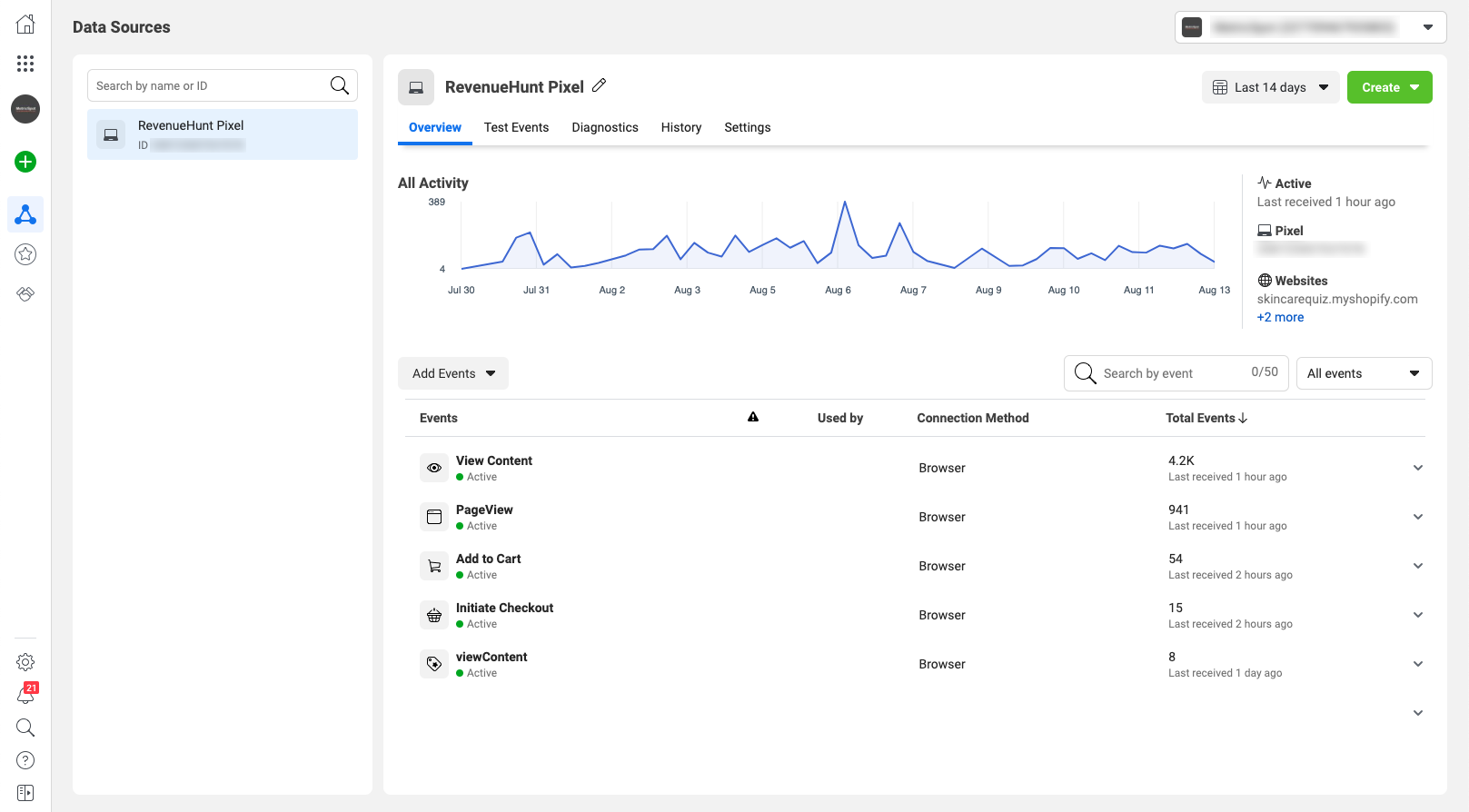
Fig. 04 Meta Events Manager showing quiz events arriving live. The `content_category` tag (results / choice / question) is what makes precise audiences possible: filter on category = results for completers, or category = choice with a specific content_name for answer-level retargeting.
Review Custom Events (the step everyone misses)
The two custom events the integration fires, RetakeQuiz and EmailLead, don’t show up in Meta’s ad audience builder until you’ve reviewed them. New setups often end up with empty custom audiences and no obvious reason why.
The fix:
-
In Meta Events Manager, open your data source. Look for the notification “Custom events can’t be used with ads features.”
-
Click Review.
-
Acknowledge the terms and select which custom events you want enabled (both
RetakeQuizandEmailLeadare recommended). -
Click Next, then Confirm.
-
Refresh Events Manager. The notification should be gone and the events become available in Audiences > Create Audience.
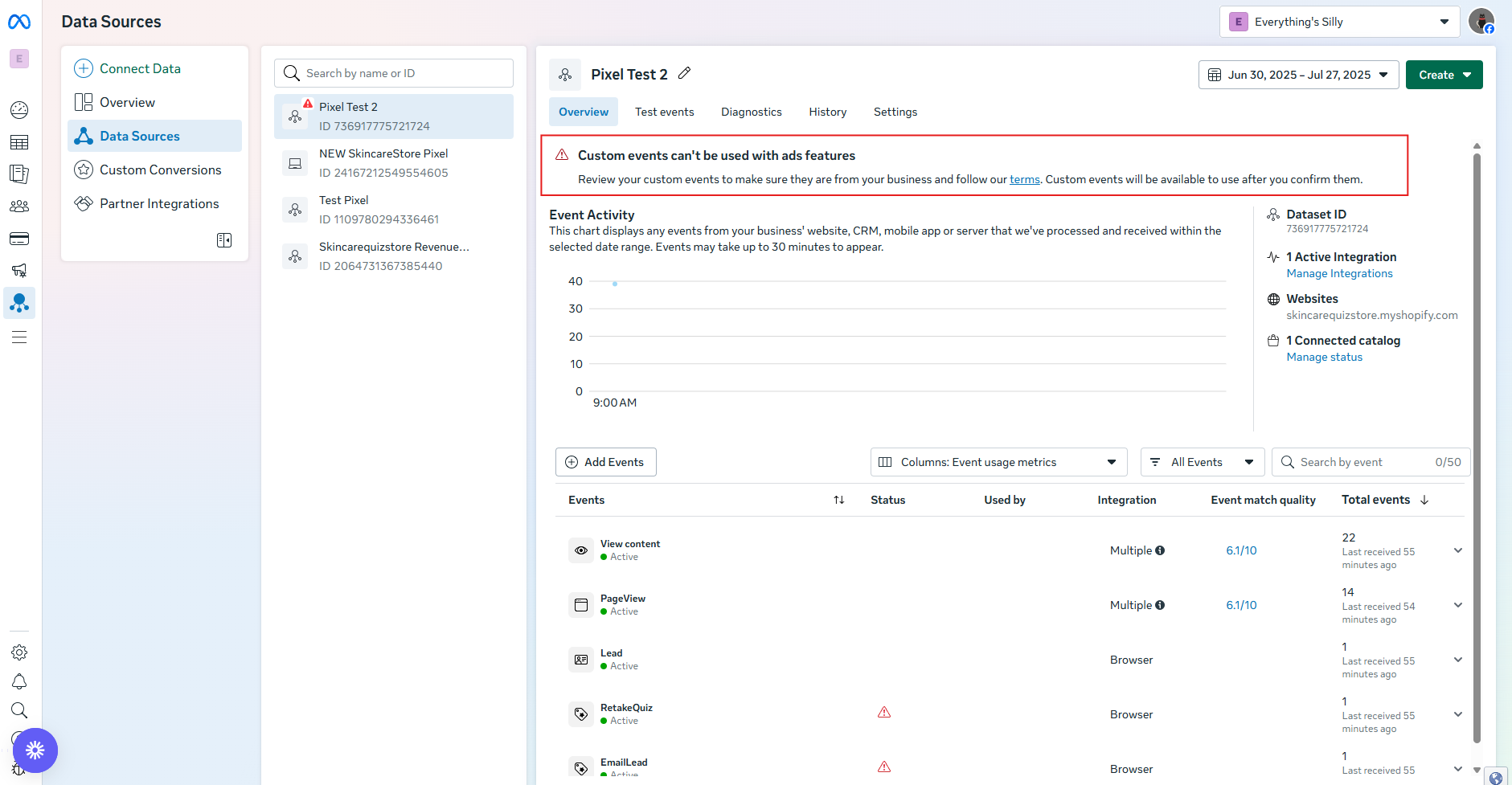
Fig. 05 The Review Custom Events notification in Meta Events Manager. Easy to miss; until it's actioned, the quiz events stay in pending status and don't become available for audience building. Click through, Confirm, and the events unlock in Audiences > Create Audience.
This is a one-time step per data source.
The two ad audiences worth building
Most of the integration’s value lands in two audiences. Build them once, refresh them on a cadence, and let the Meta delivery system take over.
1. Retarget quiz takers who didn’t buy
The highest-intent retargeting audience you can build on a quiz-driven store. Anyone who reached the results page invested 60-90 seconds telling you their preferences. If they didn’t buy, the friction was somewhere downstream (price, shipping, second-guessing), exactly the friction a retargeting ad can address with a specific message.
How to build it: Audience definition in Meta = “People who fired Lead event in the last 30 days” AND “did NOT fire Purchase event in the last 30 days.” Ad creative shows the specific product the quiz recommended (use a dynamic product ad pulling from the same catalogue) and the stated concern from their quiz answer where you have it.
2. Lookalike audience from quiz completers
The seed list is small but unusually high-quality. People who completed your quiz are by definition higher-intent than your store’s overall traffic, which means the Meta lookalike model has a sharper signal to fit on.
How to build it: Source audience = “People who fired EmailLead in the last 90 days.” Build a 1% lookalike for prospecting cold traffic. The 1-2% bands work better than 5-10% for niche stores. If your quiz is large enough (a few thousand completions), source on Lead instead and you’ll get an even better-fit seed.
When to use the Custom Pixel callback instead
If you need to track an event the built-in integration doesn’t expose (a specific choice combination, a custom-named action, an event with a payload structured for a non-standard ad platform), use the prqQuizCallback function instead of the built-in connector.
The pattern: deactivate the built-in Meta Pixel integration in the Connect tab, then add a script sitewide that defines prqQuizCallback. The callback runs on every quiz interaction with the response payload, letting you fire whatever fbq call (or any other tracking call) you need.
<script>
function prqQuizCallback(quizResponse){
  // Inspect quizResponse for the event you care about
  // and fire your own fbq() call here.
  window.fbq('track', 'CustomEvent', { /* params */ });
}
</script>
See the callback function reference for the full signature. For most stores the built-in integration handles 95% of use cases; the callback is for the long tail.
Where Meta Pixel fits in the stack
Pixel handles ad-side tracking and audiences. It doesn’t replace the email and CRM integrations that turn quiz answers into segmented follow-up flows, and it’s not the right tool for revenue attribution post-iOS 14.5 (the first-party Shopify quiz analytics pillar covers why Pixel under-reports 20-40% of attributed orders and what to do about it). The clean operating rule: Pixel for audiences, first-party analytics for revenue. With that out of the way, the clean separation:
- Meta Pixel for retargeting and lookalike audiences (this article).
- Klaviyo or HubSpot for email + flow personalisation built on quiz answers.
- Omnisend if you want email + SMS + web-push in one tool.
- Mailchimp for non-ecommerce-first audiences, on platforms other than Built for Shopify.
- Shopify Flow for tag-driven automations that stay inside Shopify.
Most stores run Pixel + one email integration; the rare advanced setup runs Pixel + Klaviyo + HubSpot.
FAQ
Why are my custom events (RetakeQuiz, EmailLead) not appearing in Audiences?
Because you haven’t reviewed them yet. Meta gates custom events from ads features until you explicitly acknowledge them. Open Events Manager > your data source > Review > Acknowledge > select RetakeQuiz and EmailLead > Confirm. The events become available in the Audience builder afterwards.
Do I need a separate Pixel for the quiz?
No. The integration binds to whichever Pixel is already firing on your storefront. On Built for Shopify it picks up the Pixel configured in Customer Events; on Legacy and the multi-platform versions you paste the Pixel ID directly.
Should the quiz live on its own page or be embedded inline?
For Pixel tracking accuracy, a dedicated page is recommended. Page-level events (URL, title) are cleaner when the page only contains the quiz, and ad-attribution windows work better when the conversion URL is distinct from the rest of the store.
What’s the difference between this and Shopify’s own Customer Events?
Shopify Customer Events tracks store-wide actions: page views, add-to-cart, checkout, purchase. The quiz integration adds the quiz-specific layer on top: which question was viewed, which choice was clicked, when the email was submitted, when the user retook the quiz. Both fire on the same Pixel, so audiences can combine them.
Can I use the Conversions API instead of (or alongside) the Pixel?
The built-in integration fires client-side via the Pixel script. For server-side Conversions API events, use the Custom Pixel callback approach to fire your own CAPI calls server-side, in addition to or instead of the built-in Pixel events. Most stores don’t need this; Shopify’s Customer Events handles purchase-side CAPI by default on Built for Shopify.
Next steps
- For the email/CRM side of the post-quiz stack: HubSpot, Klaviyo, Omnisend, Mailchimp integration guides.
- For tag-driven Shopify automations: Shopify Flow.
- For the data layer the audiences are built on: customer tags in product quizzes and zero-party data.
- For consent at quiz time so the Pixel can legally fire: marketing consent in your quiz.
- For the full strategy this audience layer fits into: build a sales funnel on a Shopify store.
- Estimate the lift on your own store: quiz ROI calculator.
Free tools & data
Put these benchmarks to work on your own store.
Free tool
Quiz ROI calculator
Estimate the extra revenue and ROI a product recommendation quiz could add to your store. Built on real data, no email required.
Calculate your ROIFree report
Ecommerce quiz benchmark report
How product recommendation quizzes really perform: conversion by category, AOV uplift, and completion, from 45M+ real quiz responses.
Read the report
Most shoppers leave because they can't find the right product